


Interpreting WebRTC Statistics with rtcStats
September 24, 2025
Call center agents spend their entire day on voice calls.A surprising number of them start their shift without a properly configured workstation. A wrong audio device selected in the browser, an outdated OS, a Wi-Fi connection shared with a cloud backup running in the background: any of these can turn a simple customer call into a frustrating experience for both sides.
WebRTC is the dominant technology behind browser-based softphones, and it works remarkably well when the environment is set up correctly. But WebRTC is sensitive to its surroundings: the headset, the browser version, the network quality, and even the power settings of the laptop all have a direct impact on call quality.
Support teams regularly handle tickets that could have been avoided or at least diagnosed faster if agents had a clear reference for what a correct setup looks like and what to check first when something goes wrong.
This guide is that reference. It covers workstation configuration (OS, hardware, headset, browser, network) and provides a troubleshooting guide for the most common issues agents encounter. The goal is to help agents self-diagnose and resolve problems quickly, and to give support teams a shared baseline when escalation is needed.
One important scope note: this guide focuses exclusively on the agent’s side. It does not cover issues at the platform or solution level (server infrastructure, signaling, media routing), nor problems originating from the caller’s side where a bad network connection is, by far, the most common culprit. If the agent’s setup checks out but call quality remains consistently poor, the problem likely lies elsewhere.
| Status | Operating Systems |
|---|---|
| Recommended | Windows 11, macOS 26.x (Tahoe) |
| Possible | macOS Sonoma 14.x, Ubuntu 22.04 LTS, Ubuntu 24.04 LTS |
| Not recommended | Windows 10, macOS Ventura 13.x |
In details:
Note — System Updates: Apply system updates promptly when asked, regardless of the OS. On Windows, also apply BIOS and motherboard firmware updates when available.

| Component | Requirement |
|---|---|
| CPU | Modern multi-core processor (no specific minimum) |
| Memory | 8 GB RAM minimum |
| Disk | No specific requirement |
In details:
Note: Using the video or the screen sharing may impact the CPU load by more than 50%. If the agent uses background blur or virtual backgrounds, a dedicated GPU is strongly recommended, as this feature is GPU-accelerated and will otherwise heavily load the CPU.
| Device Type | Audio Quality | Connectivity |
|---|---|---|
| Integrated / Built-in | Variable | Simple |
| USB | High | Reliable |
| Bluetooth | Variable | Complex |
In details:
Note — Apple Continuity (macOS/iOS): On Apple devices, the Continuity feature may automatically switch the active microphone or audio output to a nearby iPhone or AirPods without explicit user action. This can unexpectedly change the audio device during a WebRTC call. Agents using macOS should verify that the correct audio device remains selected in both the system and the WebRTC application, and disable Continuity handoff if it causes disruptions.
Tablets and smartphones are not recommended as primary agent devices for WebRTC calls. While technically capable of running WebRTC in a browser, they present significant practical limitations in a call center context:
In all cases, a PC or Mac workstation remains the recommended platform for agent use.
WebRTC calls consume more battery than typical office tasks. The recommended approach is to keep the laptop plugged into AC power during production hours whenever possible. This ensures the CPU, Wi-Fi adapter, and USB ports operate at full capacity without any power-saving restrictions.
If the laptop cannot be plugged in, battery optimization features must be disabled to prevent performance throttling:
Note — Battery alerts: Pay attention to low battery notifications during a call. A battery level falling below 20% may trigger automatic power-saving behaviors even if they were manually disabled. If a notification appears, plug in the charger as soon as possible.
| Status | Browsers |
|---|---|
| First class | Chrome, Edge (Chromium) |
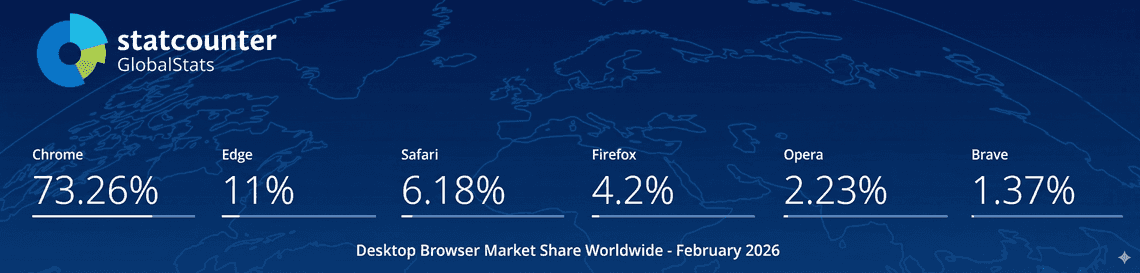
| Supported | Safari (macOS/iOS), Firefox, Brave, Opera |
| Not recommended | All others |
Note — Safari and Firefox: Both browsers can be used without any risks as Chrome, but some WebRTC features or application-specific functionality may not be available, especially on Firefox. In case of an issue that cannot be reproduced or explained, a good diagnostic practice — when possible — is to reproduce it on Chrome and compare the behavior. Chrome is the reference implementation for WebRTC and the most reliable baseline.
Browsers must be updated regularly. Unlike OS updates, browser updates are not always automatic — if the computer is left running continuously without being restarted, the update will have been downloaded but not yet applied. In that case, the browser must be fully quit and relaunched to complete the update.
Using incognito or private browsing mode is not a good practice for WebRTC applications. In this mode, browser permissions (including microphone and camera access) are not persisted between sessions, which means the agent will be prompted to re-authorize devices on every session. Some extensions and application features may also be blocked or unavailable in incognito mode.
Always verify, when the web application is opened, that the browser has permission to use the microphone. The padlock (or settings) icon in the address bar should show microphone access as Allowed for the site. If the permission was previously denied, it must be reset manually in the browser settings before calls can work correctly.
Limit the number of browser extensions installed on agent workstations. Aggressive ad blockers, screen recorders, and audio processing tools can interfere with microphone access, inject code into web pages, or disrupt WebRTC media streams. When an unexplained audio or connectivity issue occurs, disabling all extensions temporarily is a useful first diagnostic step.
Make sure the application is never open in more than one tab simultaneously. Having two instances of the same softphone open in parallel causes conflicts over microphone access, audio routing, and session state — leading to calls that connect on the wrong tab, missing audio, or silent microphone.
More generally, avoid accumulating unnecessary open tabs during a session. Each browser tab consumes memory independently of whether it is active or not. A large number of open tabs can exhaust available RAM, forcing the OS to swap memory to disk and significantly reducing the performance available for the call. If memory pressure is high, the browser may also deprioritize or throttle inactive tabs, other than the tab where the call occurs.
A headset with a dedicated microphone is recommended in a call center: it isolates the outgoing sound from the microphone and prevents the echo caused by PC speakers. Professional headsets (Jabra, Poly/Plantronics, Logitech, etc.) are designed for extended use and often include noise reduction for both the agent and the customer.
For agents working from home, a headset is also an excellent way to stay acoustically isolated from the surrounding environment — family noise, pets, household sounds — and to prevent those from being transmitted to the customer.
Wired is the preferred connection mode: it provides the most reliable and consistent audio quality, with no battery dependency, no profile switching, and minimal latency.
USB docks (speakerphones / conference devices such as Jabra Speak, Poly Sync, Logi Dock, etc.) combine an embedded microphone array and external speakers in a single unit. They are a valid option for room-based or home office setups where mobility is not required and the environment is reasonably quiet.
Depending on the quality of the device, they can deliver good audio for WebRTC calls. However, compared to a headset, they are more likely to pick up background voices, ambient noise, and room reverberation, as their microphones are designed to capture a wide area rather than a single speaker. In noisy environments — open-plan offices, shared spaces — a headset remains preferable.
Bluetooth headsets are a valid and comfortable choice when used correctly. They offer freedom of movement and, with a quality device and proper configuration, can deliver reliable audio for WebRTC calls.
Using the laptop’s built-in speakers is generally not recommended for call center use, but may be acceptable depending on the environment. In a quiet, isolated setting (private office, dedicated home workspace), built-in speakers can work adequately, but only when used together with the built-in microphone. WebRTC echo cancellation relies on knowing exactly what is being played through the speakers; using an external or headset microphone in combination with built-in speakers breaks this pairing and prevents the echo canceller from working correctly. They cannot match the audio quality or isolation of a dedicated device, and they carry a real risk of acoustic echo — the customer’s voice plays through the speakers, is captured by the microphone, and fed back into the call. Even with WebRTC echo cancellation, the result is imperfect, especially in reverberant rooms.
When using built-in speakers and microphone together, echo risk is at its highest. Always prefer a headset when in doubt or test it before in a real condition.
It may be tempting to build a high-quality audio setup inspired by content creators or streamers, but this type of configuration is generally not adapted to call center use and introduces unnecessary complexity.
A single quality headset — wired USB or Bluetooth with a dedicated dongle — remains the simplest, most reliable, and most support-friendly setup for an agent.
High-end professional headsets now embed a range of audio processing features that can significantly improve call quality when properly understood and configured.
Active Noise Cancellation (ANC): Uses microphones on the outside of the ear cups to sample ambient sound and generate an opposing signal, canceling environmental noise in the listener’s ear. ANC improves agent comfort in noisy environments and reduces fatigue during long call sessions. It acts on the listening side and does not affect what the customer hears.
Microphone Noise Cancellation / Background Noise Suppression: Filters out ambient sounds (keyboard, HVAC, open-space conversations) from the agent’s outgoing audio before it reaches the customer. High-end models use beamforming microphone arrays and AI-based processing. This is distinct from ANC — it acts on the sending side.
Acoustic Echo Cancellation (AEC): Some headsets apply echo cancellation at the hardware level, in addition to (or instead of) the browser’s own WebRTC AEC. Having two independent echo cancellers in the chain is usually harmless, but in rare cases can cause artifacts. When troubleshooting echo, it is worth knowing whether the headset applies AEC itself.
Audio Effects and Equalizers: Many headsets ship with companion software (Jabra Direct, Poly Lens, Logitech G Hub, etc.) that allows tuning of EQ, sidetone level, voice enhancement, and other parameters. Default profiles are generally optimized for voice, but support teams may ask agents to reset these to defaults when diagnosing audio quality issues.
Gain and Microphone Sensitivity: Some headsets allow adjusting the microphone gain either through companion software or directly via buttons on the device. Incorrect gain settings (too high or too low) are a common cause of clipping, distortion, or low volume. When all other parameters seem correct, checking the headset’s own gain setting is a useful diagnostic step.
Note: These features should be used with care. Audio processing can be applied at multiple levels simultaneously — the headset firmware, the companion software, and the OS itself (macOS, for instance, applies its own built-in audio effects and enhancements on some devices). Always know what is active at each level and what effect it has: stacking multiple processors without understanding them is a common source of degraded or unpredictable audio quality. When an issue occurs, systematically disabling effects one layer at a time is a reliable diagnostic approach. These features are generally configured through the headset’s companion software, not the OS or browser. Keep companion software up to date alongside the headset firmware, as both regularly receive audio processing improvements.
| Status | Connection Type |
|---|---|
| First class | Wired Ethernet |
| Supported | Wi-Fi (home or corporate, good signal) |
| Not recommended | 4G/5G mobile hotspot, 4G USB card, public or free access points |
In details:
Note — Test before starting: Always run a quick connection quality check before the start of a production session, especially on Wi-Fi. Use a speed test (e.g., fast.com or speedtest.net) to verify that latency is below 150 ms and that bandwidth is at least a few Mbit/s in both directions. If results are poor, switch to Ethernet or move closer to the access point before taking calls.
Using a VPN during WebRTC calls is generally not recommended and should be avoided if the platform does not require it.
The main issue is geographic routing: WebRTC relies on connecting to the closest available media server or TURN relay to minimize latency. When a VPN is active, all traffic is routed through the VPN’s exit point, which may be located in a completely different region from the agent. This can significantly increase round-trip latency and introduce jitter, both of which directly degrade call quality.
Additionally, VPN tunnels add encryption overhead and can reduce effective bandwidth, which further impacts real-time audio streams.
Exception: If the agent is connecting from a public or untrusted network (see section 4.1), using a corporate VPN remains the right security decision despite the performance trade-off.
The table below summarizes typical network requirements per use case. Values are per-agent (not per site) and assume a single active session.
| Use case | Upload | Download | Max latency (RTT) |
|---|---|---|---|
| Audio | 15–100 kbit/s | 15–100 kbit/s | < 150 ms |
| Audio + video | 1–2 Mbit/s | 1–2 Mbit/s | < 150 ms |
| Conference | 2–3 Mbit/s | 2–3 Mbit/s | < 150 ms |
Key quality thresholds (all scenarios):
Note: These are indicative values for planning purposes. Actual consumption depends on the codec negotiated, the platform’s behavior, and the number of simultaneous streams. When in doubt, measure with the actual application using the connection test tool if available.
Note — Speed test: Before starting a production session, run a quick speed test to verify that latency is below 150 ms and bandwidth is at least a few Mbit/s in both directions. When available, also use the call center WebRTC application’s built-in connection test page, which typically checks the microphone, bandwidth, and firewall configuration in one step.
This chapter provides a symptom-based troubleshooting reference for the most common call issues. Each section describes a specific symptom and lists the steps to follow in order, from the simplest check to the less obvious causes.
The goal is to allow agents to self-diagnose and resolve the most frequent problems without immediately escalating to support.
This list is not exhaustive — it covers the most common issues, but some issues may require deeper investigation specific to the workstation or platform. If none of these steps resolve the problem, escalate to support with the context described in the next chapter.
The table below lists the most common symptoms and the primary area to investigate first. Each symptom links to the corresponding section for detailed steps.
| Symptom | Investigations |
|---|---|
| I cannot hear the customer | Headset |
| The customer cannot hear me | Microphone |
| Customer volume too low ot too loud | Headset |
| Bad audio quality | Network |
| Intermittent dropouts | Connectivity |
| Call fails to connect | Application or Network |
| Echo heard by the customer | Microphone and Speakers |
| Frozen or blurry video | Network or CPU |
| Microphone not detected | Browser or OS |
Specific to microphone (customer cannot hear you):
Specific to headset/speakers (you cannot hear the customer):
Common checks (both directions affected):
Symptoms suggesting a network issue include: robotic or metallic sound, choppy audio, intermittent dropouts, calls that fail to connect.
Diagnostic steps:
If the customer hears an echo of their own voice, the problem is almost always on the agent’s side.
When the headset or microphone does not appear in the application or the OS, follow these steps:
For USB headsets:
For Bluetooth headsets:
Browser-level permission denied:
When a problem cannot be resolved through symptom-specific steps, or when the cause is unclear, apply the following general reset procedure in order:
This list is not exhaustive — it covers the most common reset actions, but some issues may require deeper investigation specific to the workstation or platform. If none of these steps resolve the problem, escalate to support with the context described in the next chapter.
When a WebRTC issue occurs and cannot be resolved through standard troubleshooting, the support team may need to collect technical information from the agent’s session. This section explains how to gather the most useful data when asked.
Most of the time, collecting useful information requires reproducing the issue. Also note whether the issue is 100% reproducible or only happens occasionally: this is a valuable pieces of context for the support team.
When a problem occurs, note the exact time and write a short description of what happened. The timestamp is the single most critical piece of information: it allows the support team to correlate client-side observations with server-side logs.
If support asks, be ready to provide:
In most cases, support will also ask for logs. See the following sections.
WebRTC exposes lot of statistics (packet loss, jitter, codec, bitrate, etc.) and information. These can be captured by the application itself or via browser tools.
Legacy method — chrome://webrtc-internals:
In Chrome or Edge, open a new tab and navigate to chrome://webrtc-internals (or edge://webrtc-internals). This page displays all active and recent WebRTC sessions with statistics. When support asks for an rtcStats dump, click “Download the “rtcstats dump” to export a debug file that can be shared with the team.
Note: Some WebRTC platforms automatically collect and send rtcStats to a backend thanks to the rtcstats open-source. In that case, the support team can retrieve the session data directly (using the userId and timestamp).
The browser developer console captures JavaScript errors, network warnings, and application-level log messages that are not visible in the interface.
To open the developer console:
F12 or Ctrl + Shift + I, then go to the Console tab.Cmd + Option + I, then go to the Console tab. On Safari, developer tools must first be enabled in Safari → Settings → Advanced → Show Develop menu.When support asks for console logs, reproduce the issue if possible, then right-click in the Console area and select “Save as…” or copy the relevant error messages and paste them into the support ticket.
Note: If you need to inspect the network requests and responses, the browser developer console should be opened prior to the manipulations.
For deep investigations, Chrome can be launched with additional logging flags that capture low-level WebRTC and audio processing traces.
macOS:
/Applications/Google\ Chrome.app/Contents/MacOS/Google\ Chrome \--enable-logging=stderr \--v=1 \--vmodule=*/webrtc/*=3,*/libjingle/*=3 \2> ~/Desktop/chrome_webrtc_debug.log
Windows (run from Command Prompt):
"C:\Program Files\Google\Chrome\Application\chrome.exe" ^--enable-logging=stderr ^--v=1 ^--vmodule=*/webrtc/*=3,*/libjingle/*=3 ^2> "%USERPROFILE%\Desktop\chrome_webrtc_debug.log"
Reproduce the issue while Chrome is running in this mode, then share the generated log file (chrome_webrtc_debug.log) with support. These logs are verbose and should only be collected when specifically requested, as they can grow large quickly.
Most call quality problems are not caused by bugs in the WebRTC platform itself. They are caused by the environment around it. An unsupported OS, a misconfigured audio device, a Wi-Fi connection competing with a background sync, a browser that hasn’t been restarted in a week: these are the real culprits in the vast majority of support tickets. And the network…
The good news is that most of these issues are preventable. A properly set up workstation, wired headset, stable Ethernet connection, up-to-date browser, eliminates the majority of problems before they even occur. The checklist is not long, and it does not require deep technical knowledge to apply.
When something does go wrong, start with the simplest explanation: check the headset volume, verify the selected audio device, run a speed test, restart the browser. Use the troubleshooting sections in this guide to resolve yourself the issue.
And when self-diagnosis is not enough, give support the right information: the exact time of the incident, the OS and browser version, and the logs described in the debugging section. With that context, most issues can be traced and resolved quickly.
Good calls start with a good setup.